Deactivate Provider
Deactivate Provider
MDComp allows you to turn off the dashboard for specific providers on a specified date. It’s important to note that MDComp will not process any data for a deactivated provider, so take care to ensure that data will stop flowing for the provider by the specified date.
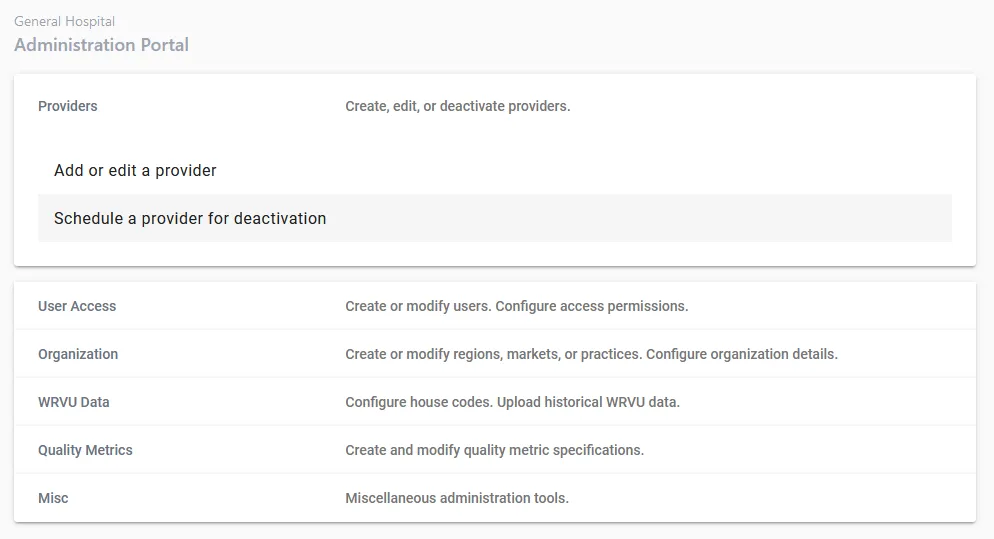
To get started, choose “Schedule a provider for deactivation” on the Administration Portal.
Step 1. Search for a provider
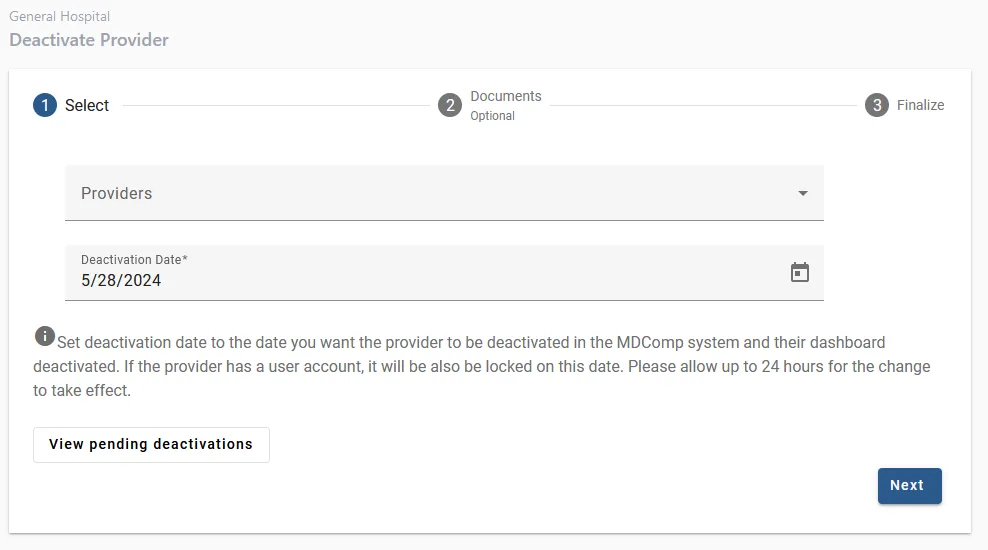
Search for the provider you wish to deactivate.
Step 2. Enter a date
Enter the date you would like to deactivate the provider on. Note: it may take up to 24 hours for the deactivation to take effect in the system. On this date, no more data will be processed for this provider and their dashboard will be inaccessible.
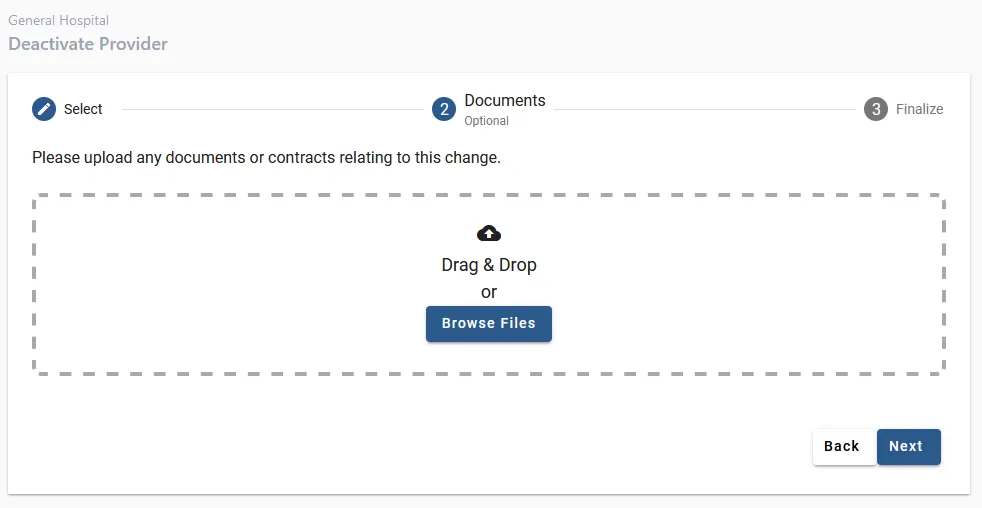
Step 3. Upload documents
You can upload any documents relating to this change. This step is optional.
Step 4. Confirmation
Ensure that all information is correct, then click “Submit”. The provider should now be scheduled to deactivate on your specified date.
View pending cancellations
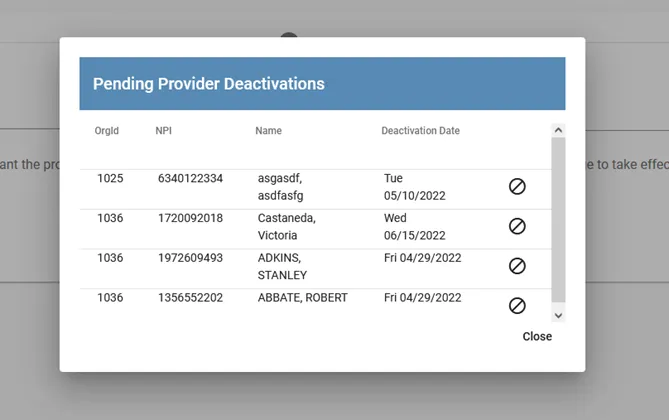
You’re able to view the list of cancellations configured by your organization. To view them, click “View Pending Deactivations” on the first tab.
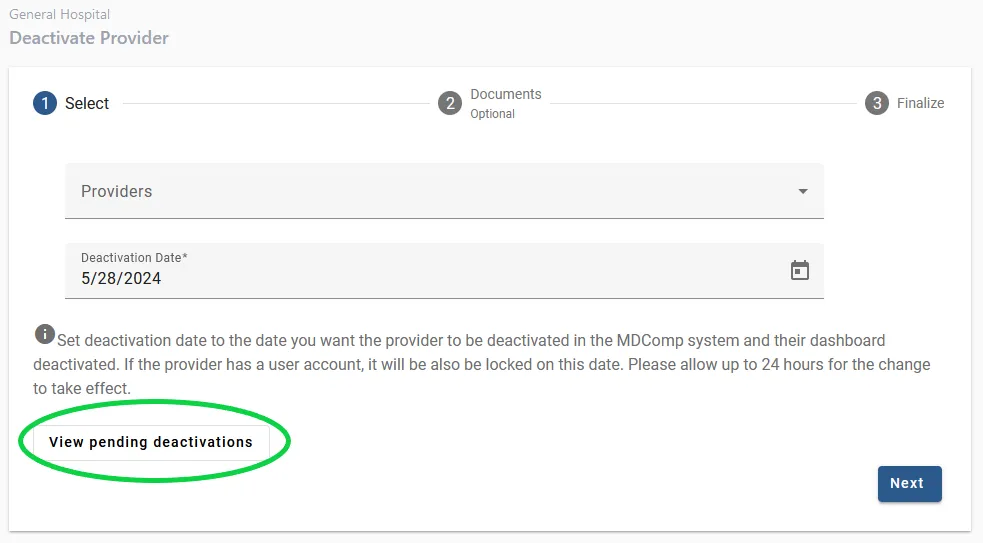
You can scroll through the list that appears, and if desired, cancel a pending deactivation by clicking the “cancel” icon on the far right of a provider listing.