Add New User
Add User
To add a new user, click “add or edit user” in the administration portal.
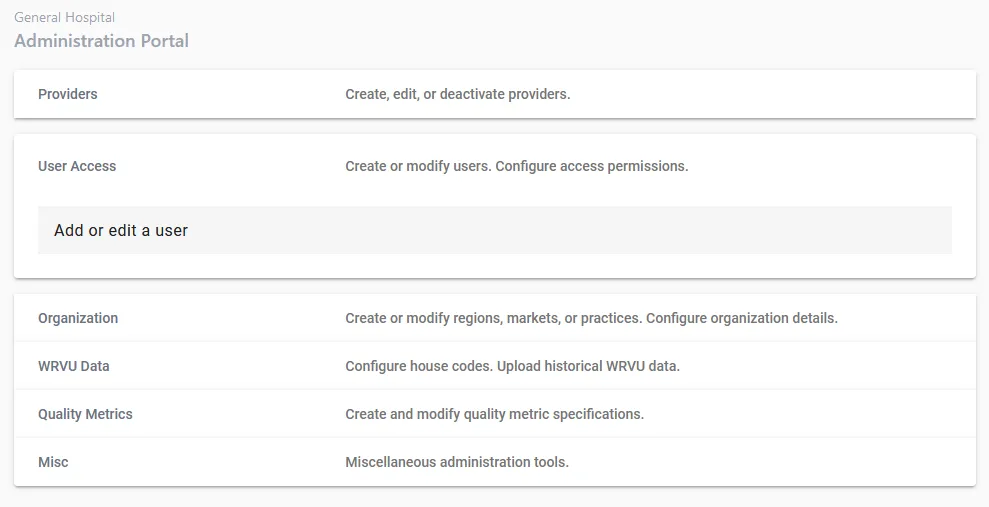
Step 1. Choose “add new user”
Step 2. Choose role
Choose the new user’s role. There are 3 roles to choose from:
- Provider. Providers only have access to their personal dashboards and documents and cannot access practices or administration tools.
- Operator. Operators can view the dashboards for specific practices and providers (that you will be able to configure on subsequent steps). Operators cannot access administration tools.
- Organization Administrator. Organization Administrators have access to the entire organization and the organization administration portal. Be careful when granting a user Organization Administration rights, as they have the ability to disable users, change provider information, and view all practices in the organization.
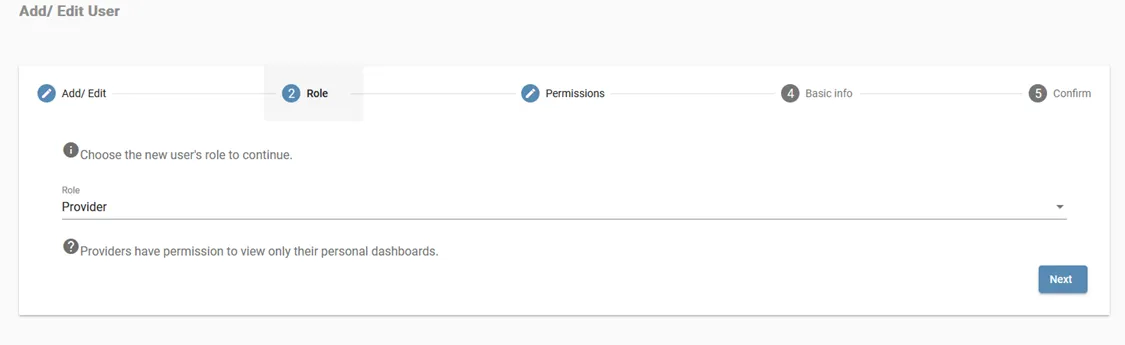
Provider role
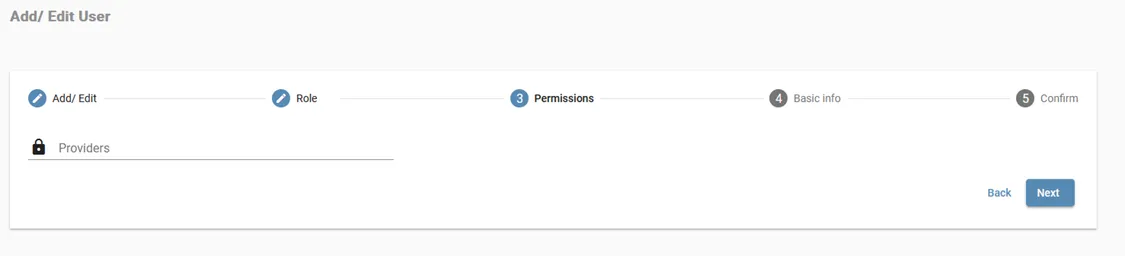
If you chose the Provider role: search for the provider in the dropdown. The user account will be linked to this provider and the provider’s dashboard will show up when the user logs in. Providers can only see their personal dashboards and documents you or they upload to their dashboards.
Operator role
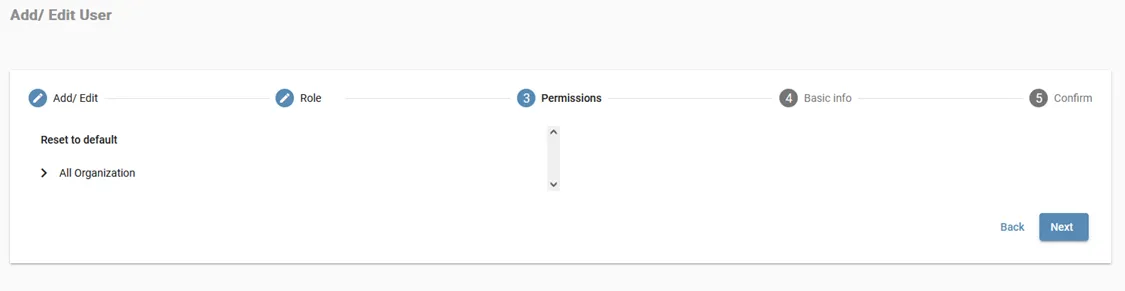
If you chose the Operator role: choose the Regions, Markets, and Practices the user will have access to.
The dashboards this Operator will have access to for future added entities is tied to the top-level category you select. For example, if you want the Operator to have access to all current and all future practices, select “All Organization”. If you want the Operator to have access to all current and all future Markets under a Region, select that Region. If you want the Operator to have access to only select practices but not future ones, select only those individual practices.
Organization Administrator role
If you choose the Organization Administrator role, simply read the warning prompt and check the checkbox if you agree.
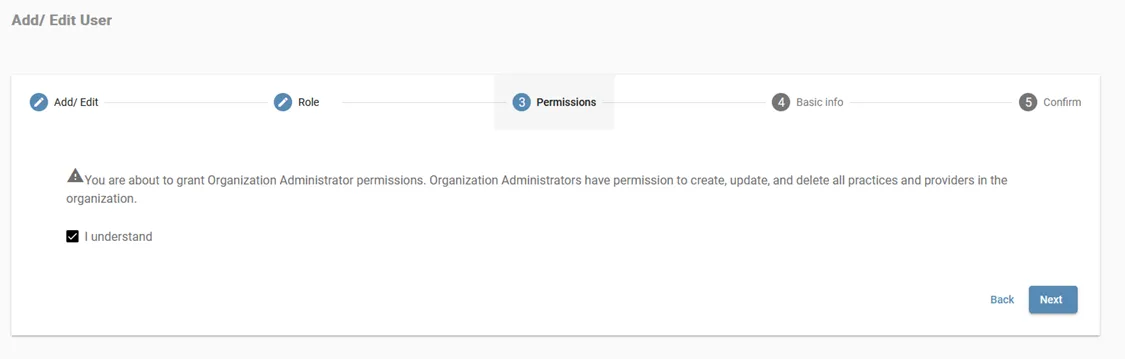
Step 3. Enter user information
Please enter the user’s information. Ensure that the email address is correct, as this is the username that will be used to log in.
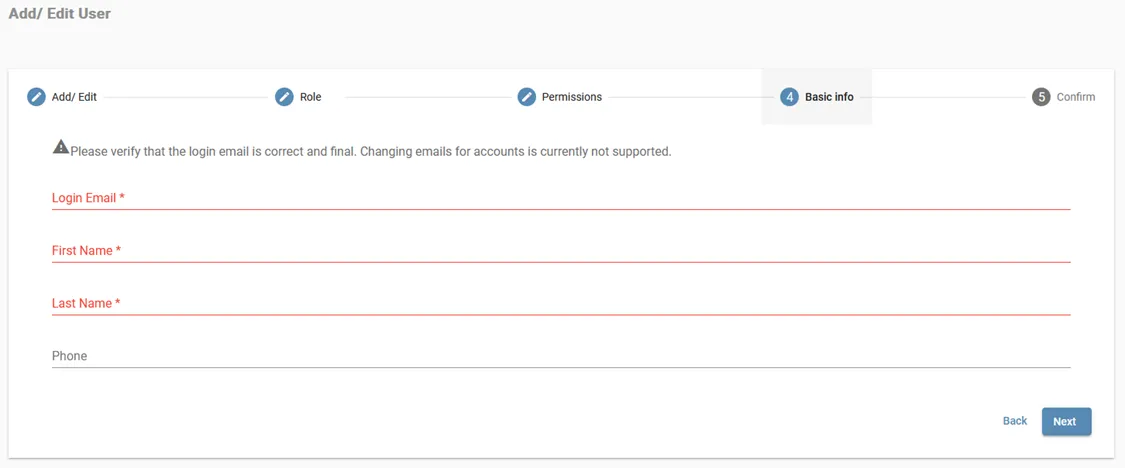
Step 4. Confirmation
Ensure that all information is correct, then click “Confirm”.