Manage House Codes
To add a custom WRVU override or modifier (called House Codes in the MDComp system), click the link titled “View house codes and WRVU overrides”.
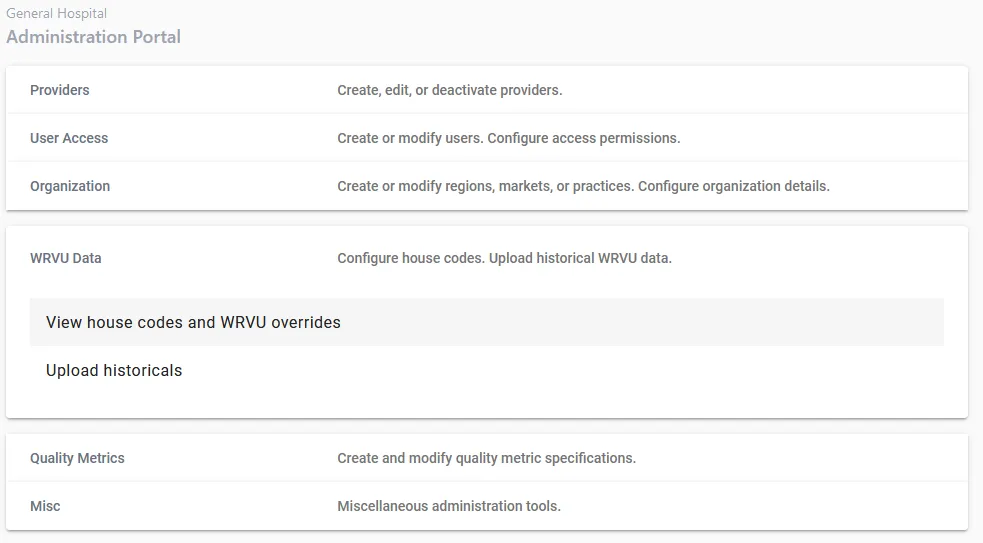
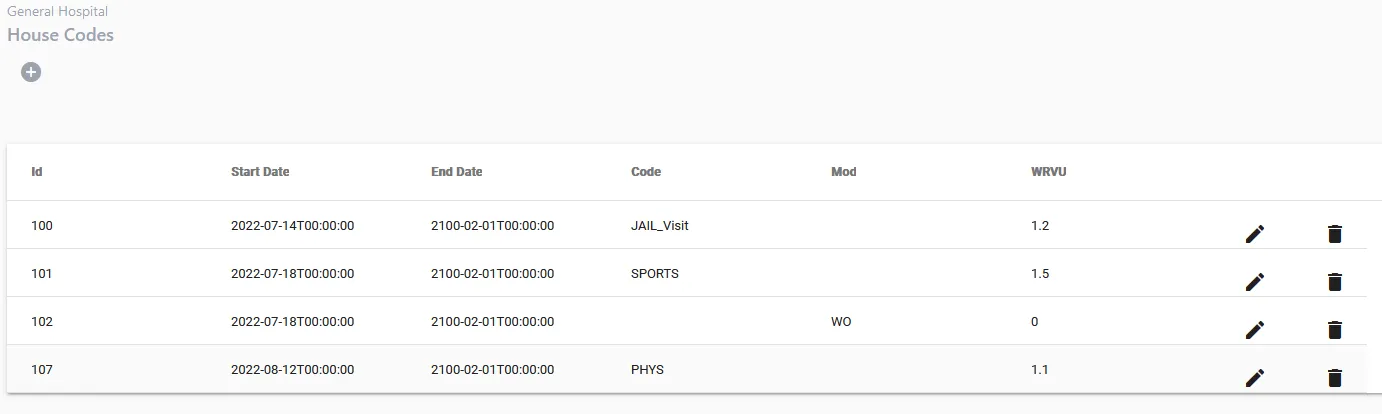
Browse House Codes List
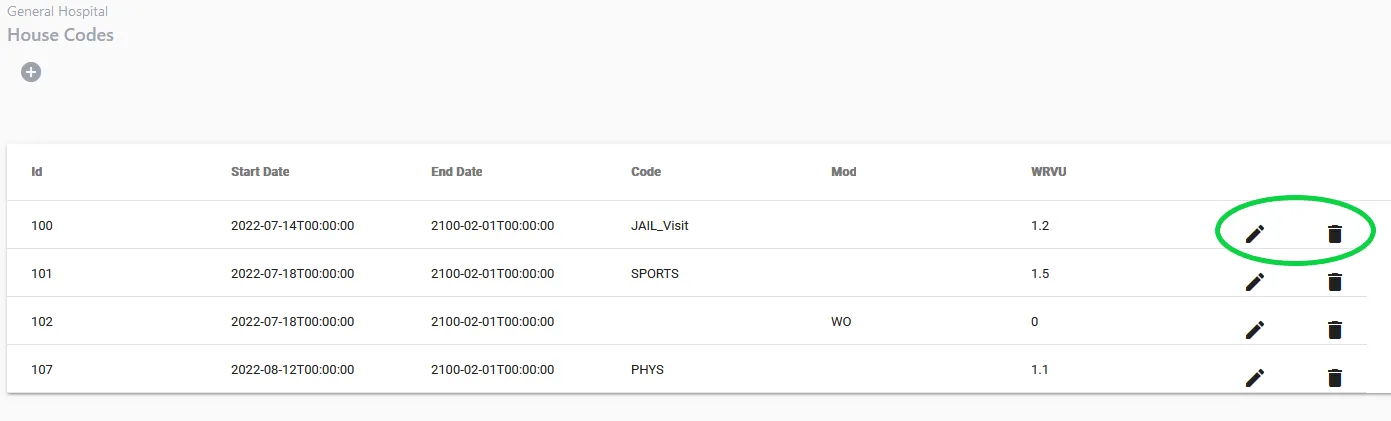
All current house codes with their WRVU values and modifiers are listed here. You have the ability to filter by either code or modifier using the three bar menu depicted on the column. Access this menu to use a variety of filtering tools.
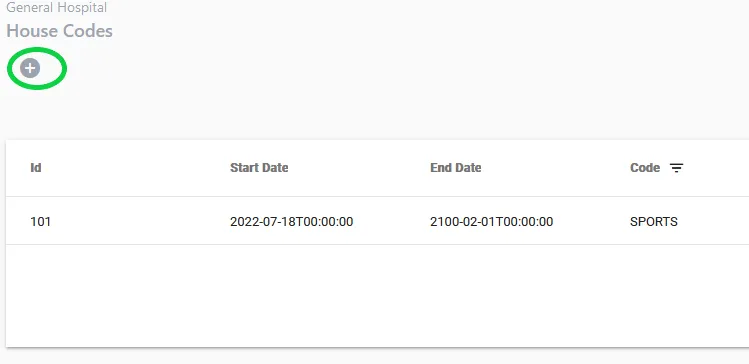
Add House Code
To add a house code, click the plus button.
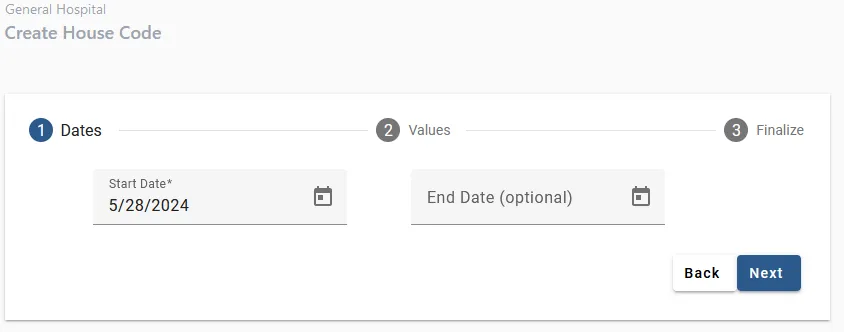
You will be navigated to the House Code Creation Wizard. Enter the Start Date and End Date (optional) for the house code.
Enter the Code, Mod, and wRVU value for the house code. Note: Either the Code or Mod can be blank, but not both.
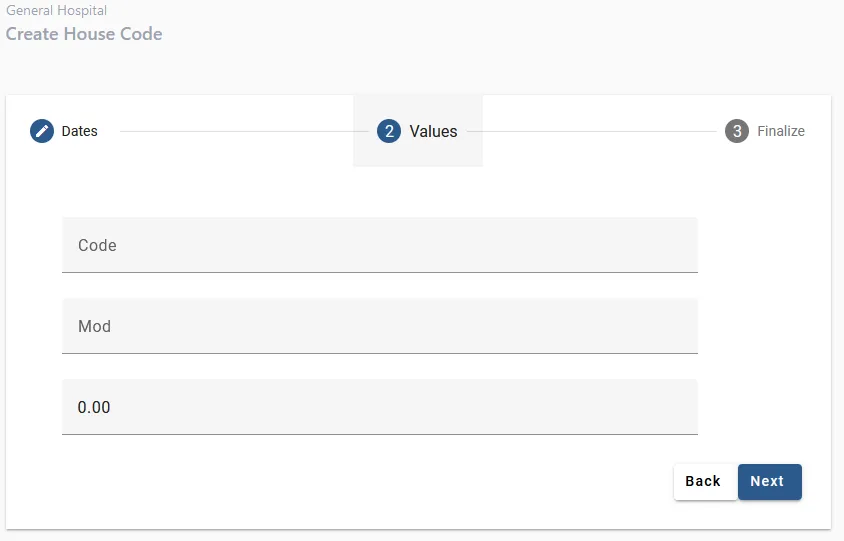
When you reach the final step, verify the information is correct and then click “Submit”.
Deleting or Editing a House Code
To delete a row, click the trash icon to the far right of a row. To edit a row, click the pencil icon.
Sorting and Filtering
You have the ability to sort the table by any row. To do this, click the column name. A single click will sort the column by ascending value, while a second click will sort it by descending value. A third click will reset the sorting back to default.

You have the ability to sort the table by any row. To do this, hover over any column and click the three vertical bars.
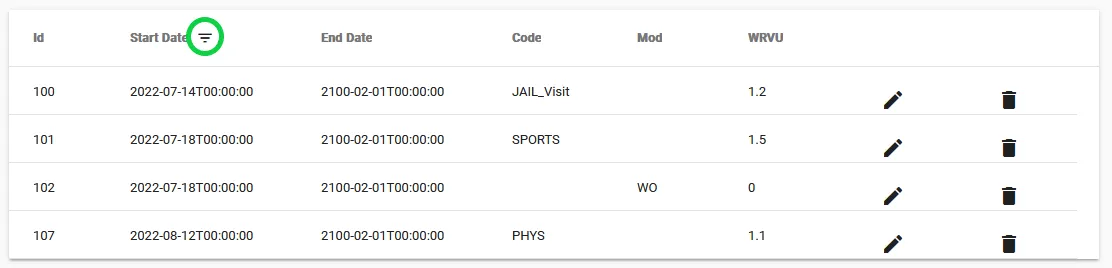
There is a wide variety of advanced filtering options available. Here is an example of the date filtering functionality:
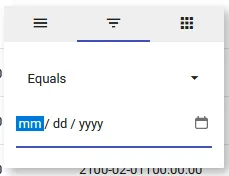
With this sorting option, you can filter the columns by date.
There are many other sorting options at your disposal. The table will automatically detect your filtering options based on the data type of the column.